Control mouse and keyboard from a smartphone
 Luka Jankovic
ed7e8bae54
Luka Jankovic
ed7e8bae54
Some checks are pending
Test / test (linux, []) (push) Waiting to run
Test / test (linux, [null portal uinput x11]) (push) Waiting to run
Test / test (linux, [null]) (push) Waiting to run
Test / test (linux, [portal]) (push) Waiting to run
Test / test (linux, [uinput]) (push) Waiting to run
Test / test (linux, [x11]) (push) Waiting to run
Test / test (windows, []) (push) Waiting to run
Test / test (windows, [null]) (push) Waiting to run
This commit introduces a complete systemd user service setup for remote-touchpad, eliminating the need for users to manually manage the binary process. Key additions: - New rts CLI wrapper script providing a user-friendly interface for service management without requiring root access - Systemd service file for proper background operation with restart policies and dependency management - Service management commands: install, start, stop, status, restart, and uninstall - URL extraction and QR code generation via the url command - Service log viewing via the log command The installation process now: 1. Verifies Go is installed 2. Builds the remote-touchpad binary with appropriate tags 3. Installs service files to ~/.config/systemd/user/ 4. Installs the binary to ~/.local/bin/ 5. Enables and starts the service automatically The README has been updated with comprehensive installation instructions for the new user service approach. |
||
|---|---|---|
| .github/workflows | ||
| desktop | ||
| flatpak | ||
| icon-font | ||
| inputcontrol | ||
| screenshots | ||
| snap | ||
| terminal | ||
| webdata | ||
| CHANGELOG.md | ||
| COPYING | ||
| go.mod | ||
| go.sum | ||
| host.go | ||
| icon_windows.go | ||
| icon_windows.syso | ||
| main.go | ||
| README.md | ||
| remote-touchpad.service | ||
| rts | ||
| webdata.go | ||
| webdata_test.go | ||
Remote Touchpad
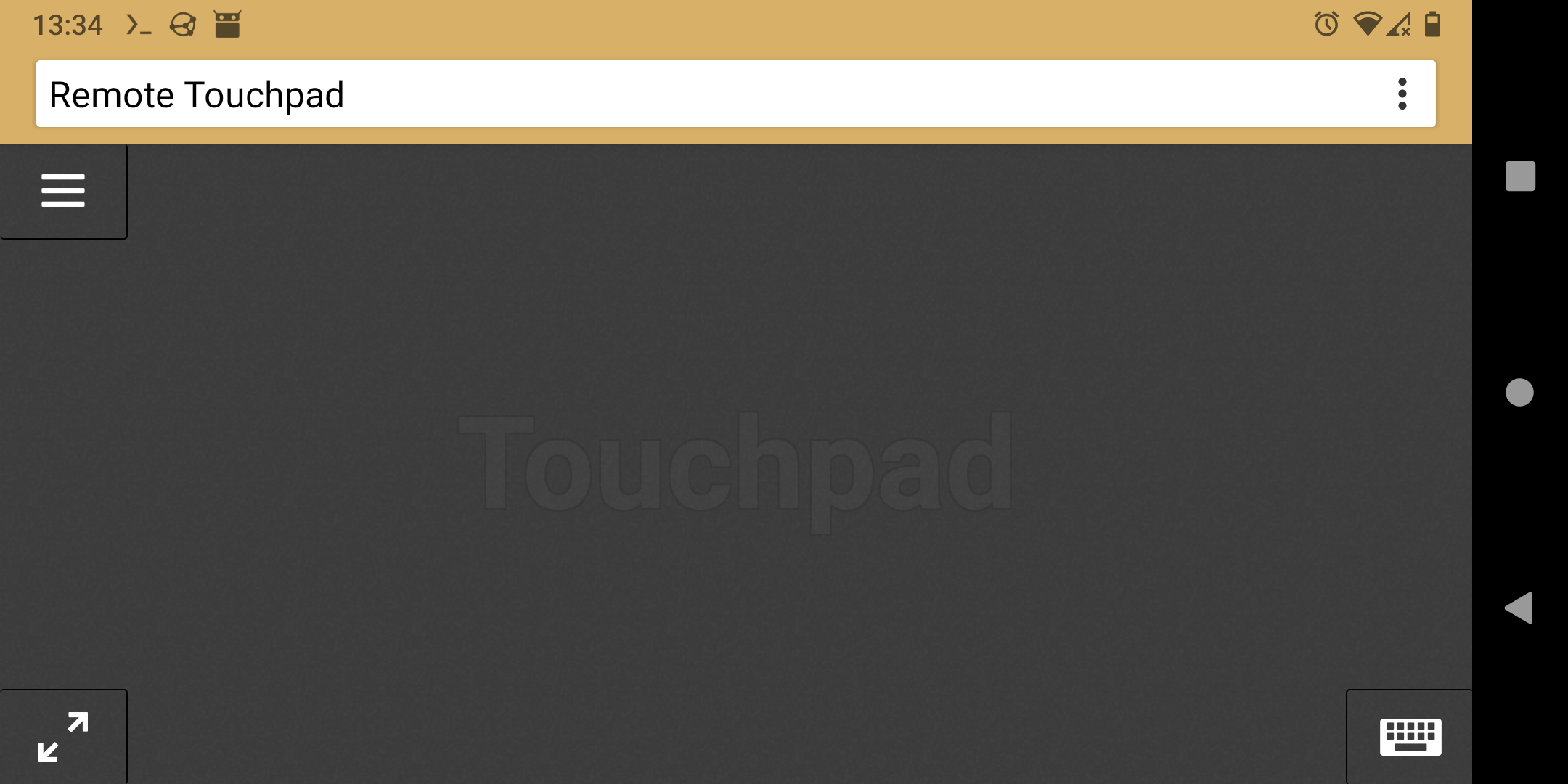
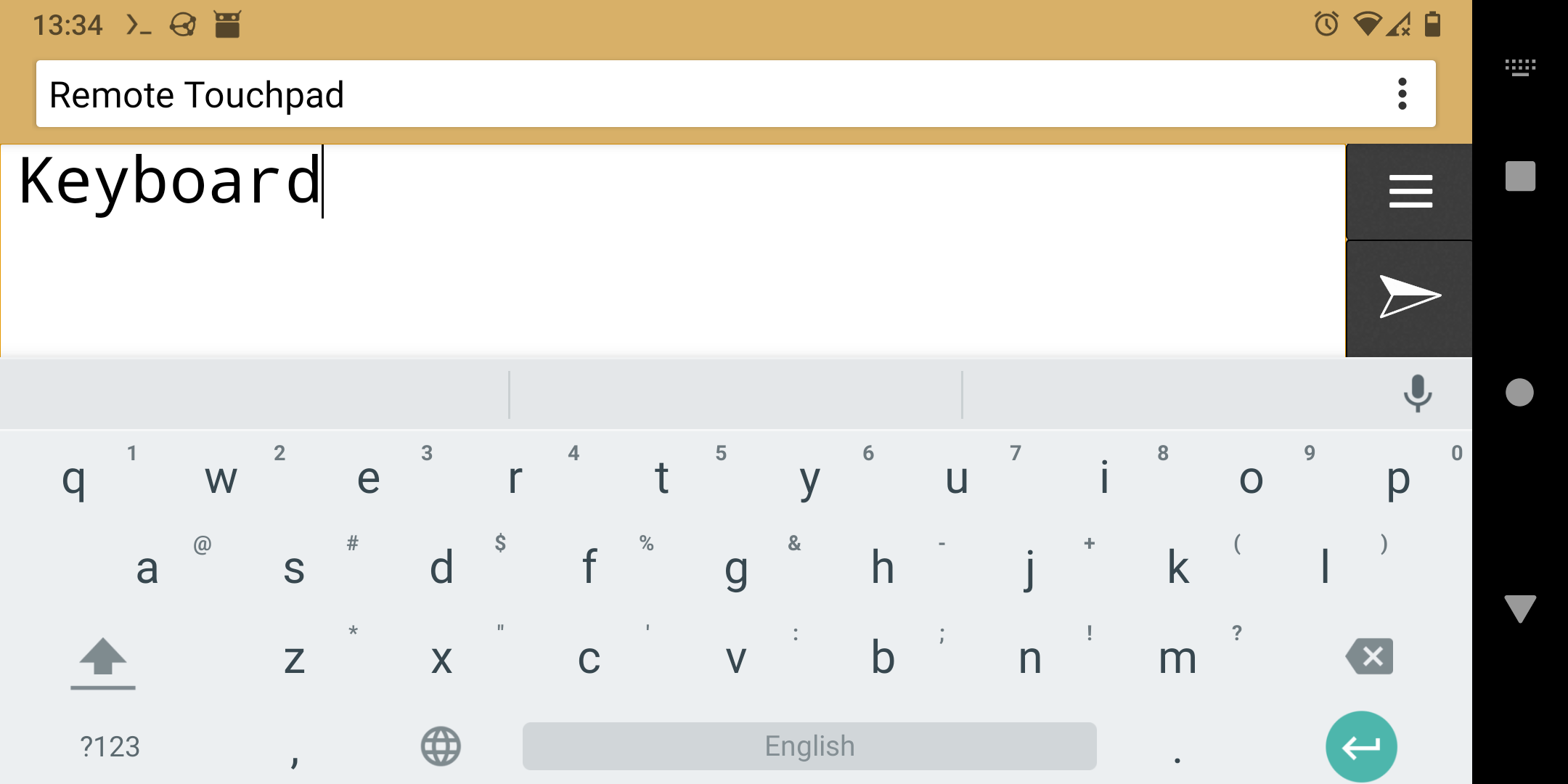
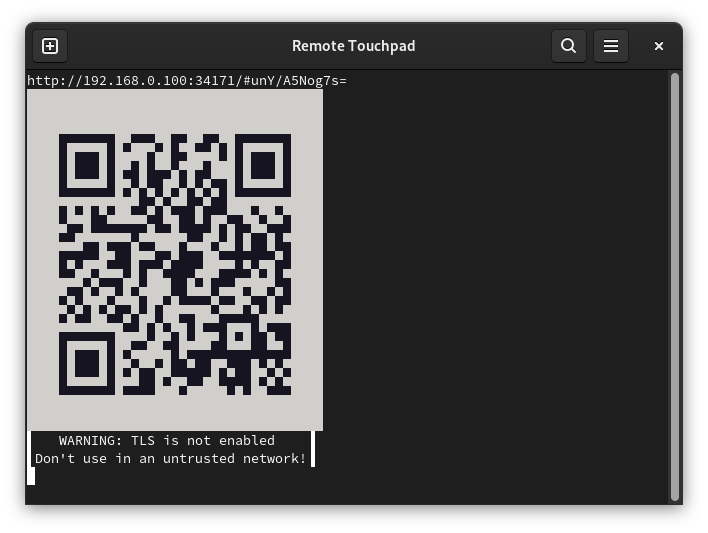
Control mouse and keyboard from the webbrowser of a smartphone (or any other device with a touchscreen). To take control open the displayed URL or scan the QR code.
Supports Flatpak's RemoteDesktop portal (for Wayland), Windows and X11.
Installation
- Flatpak
- Snap
- Windows
- Golang:
-
Portal & uinput & X11:
go install -tags portal,uinput,x11 github.com/unrud/remote-touchpad@latest -
Windows:
go install github.com/unrud/remote-touchpad@latest
-
Linux User Service Installation
To install remote-touchpad as a user-specific systemd service (no root access required):
-
Clone the repository and navigate to the project directory:
git clone https://github.com/Unrud/remote-touchpad.git cd remote-touchpad -
Install the service using the provided wrapper script (no sudo required):
./rts install -
Access the service:
- View service status:
./rts status - Get URL:
./rts url - View logs:
./rts log - Stop service:
./rts stop - Start service:
./rts start - Restart service:
./rts restart - Uninstall:
./rts uninstall
- View service status:
The service will run in the background and maintain a persistent connection with URL and QR code accessible via the url command.
Screenshots